

WhatsApp appointment booking
From a WhatsApp enquiry to a confirmed appointment.
Customers message you while you work. QORLYNT connects WhatsApp Business with services, availability and calendars. With AI enabled, the assistant can suggest suitable times and book after customer confirmation.
How the workflow works
Clarify the service and preferred time
A customer asks for a haircut on Friday. The assistant uses your configured services and asks for missing details. Booking specific staff members is available from Plus.
Check suitable availability
Opening hours, service duration, booking rules and the QORLYNT calendar determine the times offered. Optional external calendar connections add availability checks. Staff bookings also use the selected person's configured availability.
Confirm and continue in the calendar
The appointment is booked only after customer confirmation. Your team sees it in the calendar and can take over the conversation in the shared inbox.
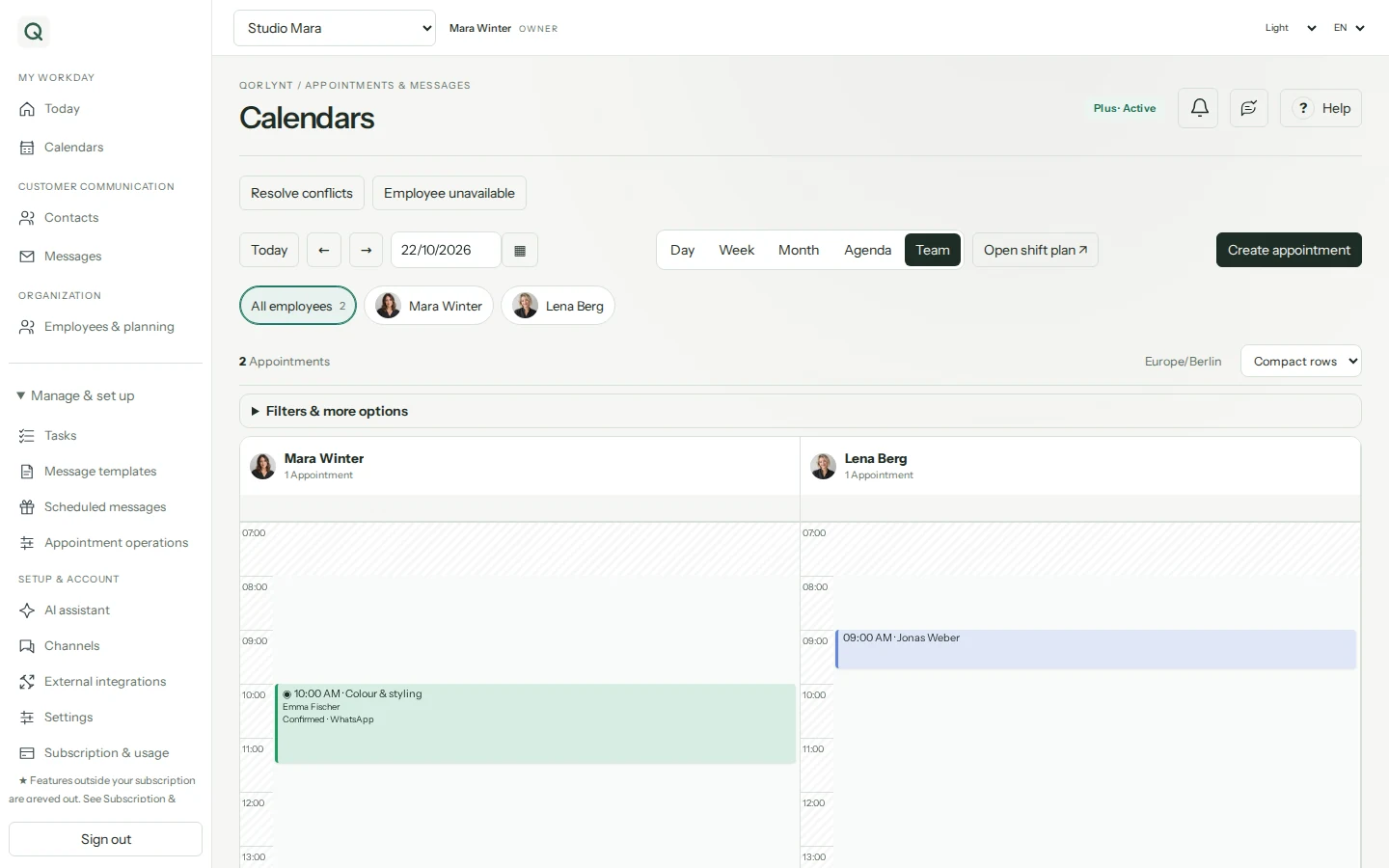
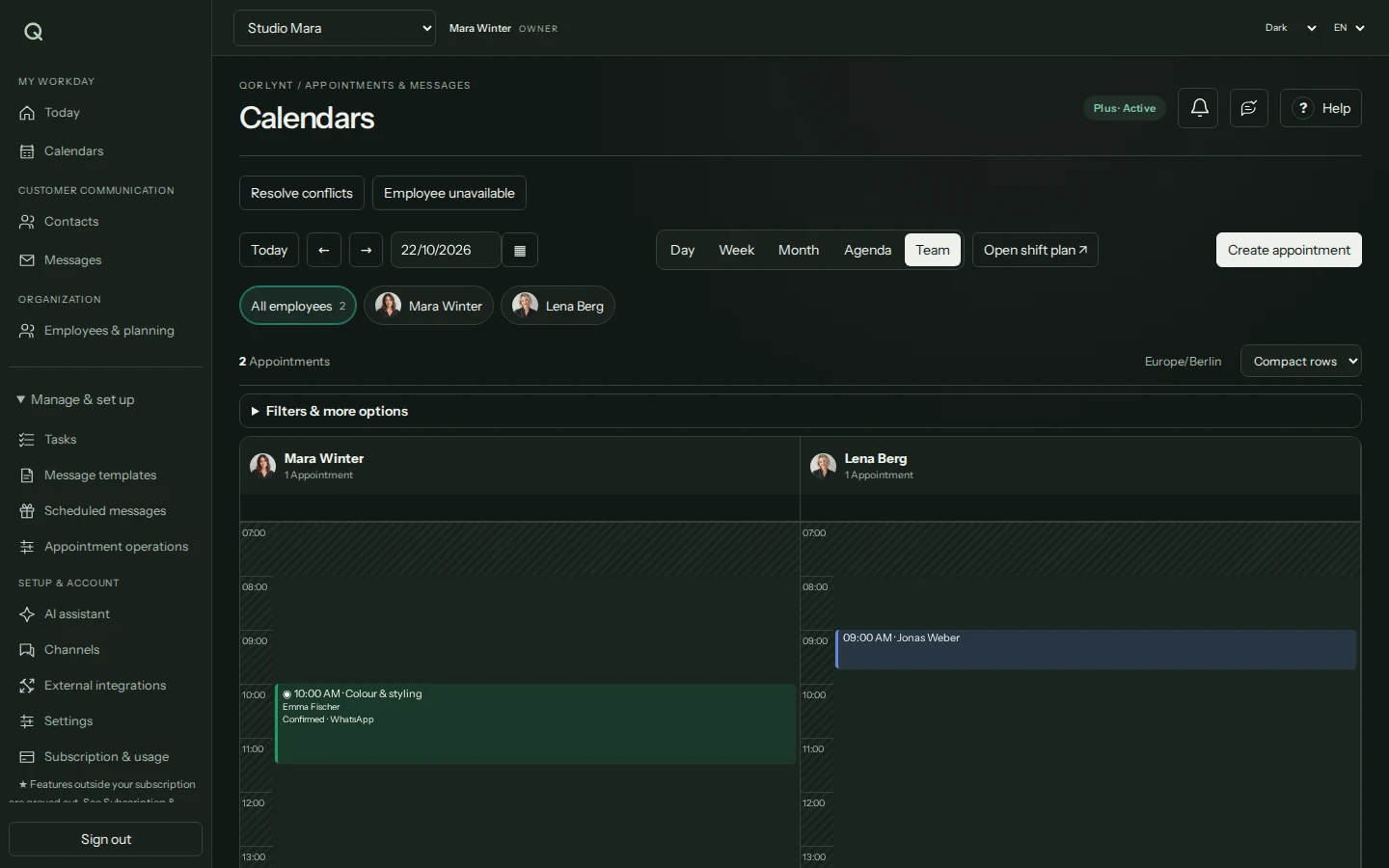
A haircut from WhatsApp enquiry to calendar entry
This illustrative workflow uses fictional details to show what to check in your own test. It is not a report of a completed customer booking. You need a connected WhatsApp channel, enabled channel AI, and configured services, opening hours and booking rules.
Send a specific enquiry
Your test customer writes, for example: “I would like to book a haircut on Friday.” The assistant clarifies the service and any missing details. Configure the actual service duration beforehand. Booking a particular team member requires a suitable plan and configured staff availability.
Check an offered appointment
QORLYNT checks the configured availability. Friday at 14:00, for example, can only be offered if it is available. A suggestion is not a booking. Optional external calendars supplement the check; you can start with the QORLYNT calendar alone.
Explicitly confirm the suggestion
The test customer confirms the offered appointment, for example: “Yes, Friday at 14:00 for the haircut.” Check the response for the actual booking outcome. If the time is no longer available or booking fails, do not treat the conversation as a successful reservation.
Check the result in your workspace
Open the QORLYNT calendar on the agreed day. Check the contact, service, start time, duration, team member where applicable, and appointment status. Compare the entry with the conversation in the shared inbox. Your team can take over there if questions remain.
What to set up first
- Connect WhatsApp Business and complete the required Meta approvals.
- Configure services, duration, opening hours and booking rules in the QORLYNT calendar. Connect Google or Microsoft only if you need external calendar synchronisation or online meetings.
- Enable AI for the channel and test the workflow with your own enquiries before use.
Which plan fits?
Simple solo bookings start with Basic. Selecting individual staff members requires Plus. Message, booking and AI allowances depend on your plan; WhatsApp provider fees are additional.
Compare plans and allowances →What to know before starting
The assistant relies on configured services and available times. An enquiry is not a confirmed appointment. Outgoing WhatsApp messages remain subject to Meta requirements, including templates and consent where applicable.
Frequently asked questions
Do I have to answer every enquiry manually?
With AI enabled, QORLYNT can answer questions, suggest times and book after confirmation. Your team can take over when personal assistance is needed.
Can I offer bookings without WhatsApp?
Yes. Customers can book through a booking link or website widget. You choose which communication channels to connect.