

AI business assistant for appointments & staff
Your AI business assistant. Appointments, staff and messages in view.
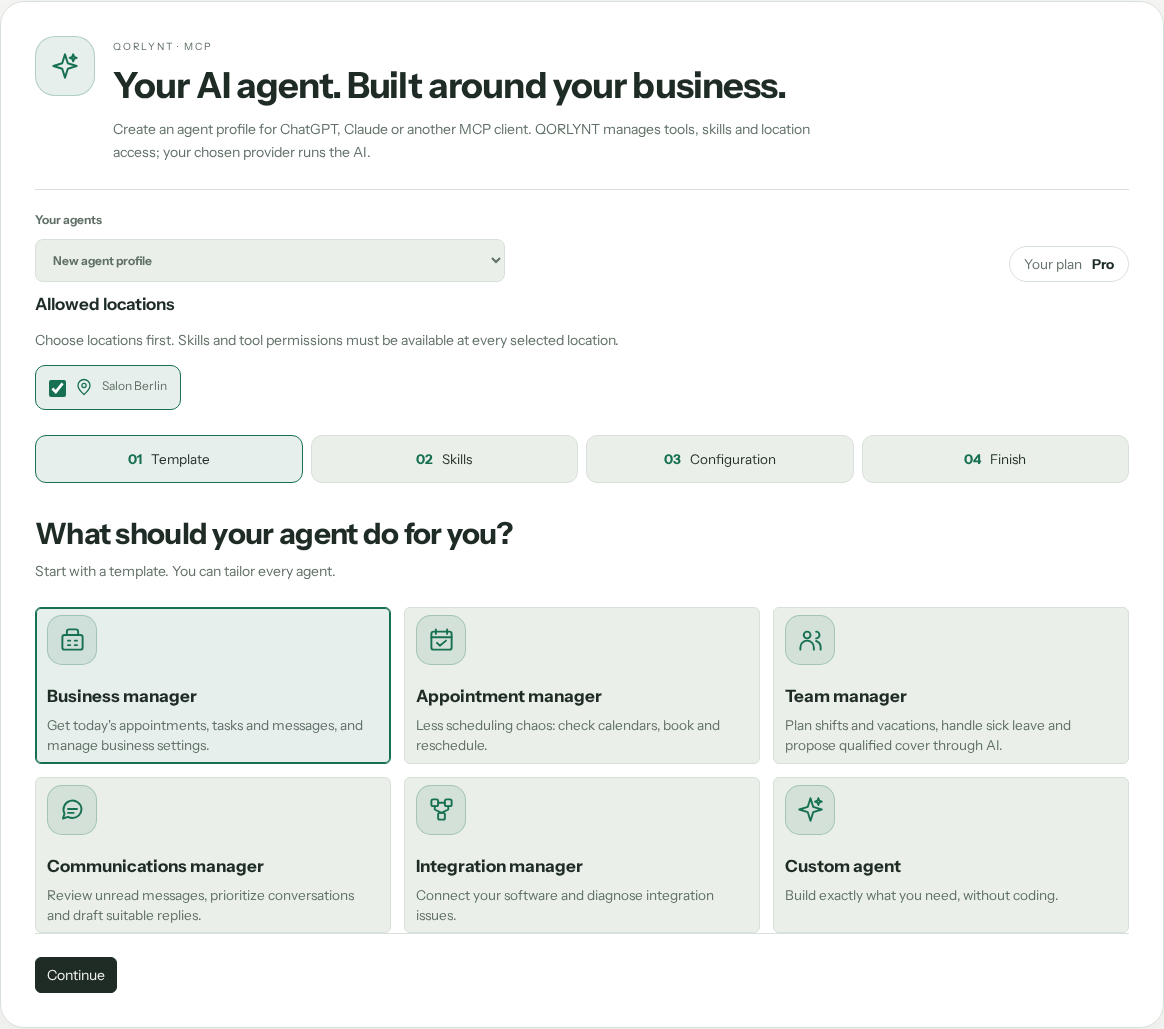
Choose how you work: use QORLYNT as usual, delegate individual tasks, or manage all supported QORLYNT business areas through your own AI agent. Agent Studio lets you select tasks and skills for ChatGPT, Claude or a compatible MCP client. Using an agent is optional. You decide which data, locations and actions to authorize, and the regular QORLYNT interface remains available.
 Open Agent Studio image at full size ↗
 Open Agent Studio image at full size ↗
How your AI assistant helps with daily business operations
Manage your business, locations and services
“Prepare new opening hours for our location.” Your agent can read authorized business data, settings, locations, staff and services and prepare changes. Explicitly select the tools required for additional administrative actions. Review the concrete changes in QORLYNT before they run.
Daily briefing and outstanding tasks
“Prepare my daily briefing.” Your assistant can summarise today’s appointments, tasks and pending approvals. With suitable permissions, it can add staff availability and unread messages. The report appears in your conversation and identifies missing information.
Manage appointments with ChatGPT or Claude
“Which times are available tomorrow?” Check services, calendars and staff availability, then request a specific QORLYNT booking, rescheduling or cancellation. Booking rules, permissions and your configured approval mode still apply.
AI-assisted staff rotas and shift planning
“Prepare next week’s shift plan.” Your assistant can review staff and existing shifts and prepare a rotation. Review the preview before approving changes, keeping absences, qualifications and existing bookings in view.
Leave planning and staff administration
“Check this leave request for conflicts.” With the team features, your assistant can inspect absences and conflicts and prepare a request or decision. Leave and affected appointments are considered together; approving an absence does not automatically resolve booking conflicts.
Cover for sickness and staff absences
“A colleague is absent: which appointments are affected and who can cover?” Your assistant can identify booking conflicts and actual replacement options. Review the proposals and authorize the changes you want. Cancellations and customer notifications require their own instructions and permissions.
Review and prioritise customer messages
“Summarise unread customer enquiries.” Organise messages by topic and prepare suggested replies. Reading a conversation does not automatically mark it as handled. Replies and message-status changes require the relevant approval.
Organise contacts, templates and workflows
“Review our customer records and prepare a message template.” With suitable permissions, the agent can help with contacts, templates, scheduled messages and campaigns. It cannot silently grant consent; sending and sensitive changes require specific permissions and approvals.
Set up connections and investigate problems
“Check why the calendar connection is failing.” Your agent can review supported connections and diagnostics and prepare multi-step setup workflows. You complete external sign-ins and provider approvals yourself. A setup step is only complete after a successful verification.
Build your AI business assistant in four steps
In QORLYNT, open External connections → MCP connector → Agent Studio. The builder guides you from choosing a role to starting in your normal AI chat.
Start with a role
Choose business manager, appointment manager or staff manager, for example. The template proposes suitable tasks that you can tailor.
Select the capabilities you need
Choose daily briefings, inbox review, leave planning or absence recovery. Studio explains missing plan features and permissions.
Choose your AI provider and locations
Select ChatGPT, Claude or another compatible client. Name your assistant, limit its locations and add instructions where needed.
Save, connect and start chatting
Save your profile. Open ChatGPT or Claude and connect QORLYNT using the short steps in Studio. Authorize access in QORLYNT, copy your instructions and paste them into a new chat with the QORLYNT connection enabled.
What to set up first
- An active QORLYNT plan with the features your assistant needs. Studio explains unavailable capabilities and their prerequisites.
- A suitable AI business workspace with an effective DPA and custom connections to QORLYNT, such as ChatGPT Business/Enterprise or Claude Team/Enterprise.
- Choose tasks and locations in Agent Studio, then explicitly approve access in QORLYNT when connecting.
- Maintain services, staff, working hours and absences for appointment and staff planning.
Which plan fits?
Available tasks depend on your QORLYNT plan and user permissions. Staff, shift and leave planning require the corresponding team features. Studio distinguishes missing plan features from missing permissions. AI-provider charges and any messaging or telephony costs are separate.
Compare plans and allowances →What to know before starting
Complete management means the supported QORLYNT business features within your plan and permissions. Billing, credentials, external sign-ins and unconnected software remain outside the agent tools. Start tasks in conversation; recurring reports or continuous monitoring require an additional execution setup. Your chosen provider runs the AI and may process authorized business data. A saved profile does not replace provider setup or explicit access authorization.
Frequently asked questions
Can I manage my whole business through the agent, and do I have to?
You can choose to manage all supported QORLYNT business areas through a suitably configured agent. You can also delegate only selected tasks or work entirely without an external agent. Your plan, user permissions, selected locations and explicitly authorized tools determine its scope. Enable sensitive tools individually; changes proposed by Studio require QORLYNT approval. Billing and external account sign-ins remain your responsibility.
What is an AI business assistant?
An AI business assistant helps with specific operational tasks. With QORLYNT, it can use authorized tools to access appointments, tasks, contacts, messages and staff planning. Agent Studio lets you choose the capabilities relevant to your business.
Which businesses is it suitable for?
Service businesses managing appointments and customer communication in QORLYNT, including salons, consultants and studios with several employees. A solo business can start with appointments and messages; teams add staff and shift planning according to their plan.
What does QORLYNT add to a normal ChatGPT conversation?
The MCP connection lets your AI provider retrieve explicitly authorized QORLYNT data and request permitted actions. Exported skills describe the workflows. You do not need to manually collect and paste available information for every question.
Can AI help reschedule around leave and sickness?
With suitable team features and permissions, it can inspect absences, affected bookings and replacement options, then prepare changes for approval. A preview is not a completed booking change; the outcome is checked after authorization.
Do I need to write code to build an agent?
The guided builder requires no custom code: choose a template and capabilities, select your provider and locations, save the profile, open ChatGPT or Claude and connect QORLYNT once. Short steps appear directly in Studio. Then copy your prepared instructions and paste them into your normal AI chat.
Is this the assistant that answers customers on WhatsApp?
The business assistant helps you and your team inside your AI account. Channel-specific WhatsApp or phone AI handles customer enquiries. These are different access paths with their own tasks and permissions.